![[LogoShip]](logo5.png)
Software for Windows
Science with your Sound Card!


Features:
Oscilloscope
Spectrum Analyzer
8-Channel
Signal Generator
(Absolutely FREE!)
Spectrogram
Pitch Tracker
Pitch-to-MIDI
DaqMusiq Generator
(Free Music... Forever!)
Engine Simulator
LCR Meter
Remote Operation
DC Measurements
True RMS Voltmeter
Sound Level Meter
Frequency Counter
Period
Event
Spectral Event
Temperature
Pressure
MHz Frequencies
Data Logger
Waveform Averager
Histogram
Post-Stimulus Time
Histogram (PSTH)
THD Meter
IMD Meter
Precision Phase Meter
Pulse Meter
Macro System
Multi-Trace Arrays
Trigger Controls
Auto-Calibration
Spectral Peak Track
Spectrum Limit Testing
Direct-to-Disk Recording
Accessibility
Data Logger
Waveform Averager
Histogram
Post-Stimulus Time
Histogram (PSTH)
THD Meter
IMD Meter
Precision Phase Meter
Pulse Meter
Macro System
Multi-Trace Arrays
Trigger Controls
Auto-Calibration
Spectral Peak Track
Spectrum Limit Testing
Direct-to-Disk Recording
Accessibility
Applications:
Frequency response
Distortion measurement
Speech and music
Microphone calibration
Loudspeaker test
Auditory phenomena
Musical instrument tuning
Animal sound
Evoked potentials
Rotating machinery
Automotive
Product test
Contact us about
your application!
MIDI Changes Script Random Values
Changes: ?(min,max), ?AZ, ?az, ?x=n, ?s=n
- Introduction
- Non-Uniform Random Distributions
- Controlling Probabilities
- Random Selection from a Buffer
- Random Selection from a User Variable List
- Repeatable Random Values
- Random Usage Counter
Introduction:
MIDI Changes script commands can use random values in place of most values. (An exception is Oscillator number, which must be an explicit digit or letter.)
The basic format for using a random value is ?(min,max), where min and max are limit values. For example, to set a random Pan Position for Voice 2 that is between Center (0) and full Left (-64), you would use:
P2=?(0,-64)
The order of the limits does not matter. Either or both may be signed.
Either or both limits may be constants or expressions, which may include oscillators, computer keyboard states, mouse position, User variables, input or buffered notes, or MIDI control values.
Expressions, and hence random values, can be used in place of Voice number or Buffer number. These are normally explicit constants, but expressions may be used by surrounding them with carets. For example, I1=115 sets Instrument number 115 (Woodblock) explicitly to Voice 1, while I<?(1,8)>=115 sets it to a random Voice 1-8.
The min and max values will be rounded to integers before computing the random value, which will then also be rounded to an integer. Thus, UA=?(0,1)*10 will take a random 0 or 1 and multiply it by 10 to give UA values of either 0 or 10. UA=?(0.37,0.95)*10 will do the same.
A separate 'f' option retains any fractional part of min and max, and returns the full fraction without rounding. UA=?f(0,1)*10 would thus set UA to random integers between 0 and 10, since User variable UA can hold only signed integers. The internal random value actually has about 10 decimal places for use in expression evaluation, but since UA is an integer variable the overall result of the right-hand expression is rounded to an integer when setting UA.
Ua=?f(0,1)*10 would return random values between 0.00000 and 10.00000 since Ua is a fixed-point variable with 16 fraction bits (about 5 decimal places).
There is also an independent pseudo-random generator that has options like the above. ?R(min,max) works just like ?(min,max) for rounded integers, while ?r(min,max) works just like ?f(min,max) to keep fractional values. The underlying generator for both of these is the same one used by the rnd(min,max) macro math function and the Posn?R function.
Additionally, there are special non-random distributions that are discussed in their own section, below.
Non-Uniform Random Distributions:
The above random numbers have uniform distributions, which means that all values in the range are equally likely. But sometimes you may want values that tend to stay near the center of the range and only infrequently go near the limits.
Alternatively, you may want most of the values near one end of the range, with less-frequent values over the remainder.
The non-uniform distributions all have the same general format as the uniform ?(min,max), except each has a different character after the '?'. An additional 'L' or 'H' specifies that the peak of the distribution comes at the low or high end, instead of in the center.
Several of the distributions are averages of uniform random numbers. For example, ?2(min,max) is the average of 2 independent random values; it gives a triangular distribution. As more values are included by using '4' or '8', the distribution becomes semi-Gaussian, more concentrated in the center and less at the ends. 'G' includes 12 values and is the classical way to generate a high-quality Gaussian distribution. Finally, 'q' gives a special square-law distribution:
- ?(min,max) Uniform
- ?2(min,max) 2 uniforms, triangular
- ?4(min,max) 4 uniforms, semi-Gauss
- ?8(min,max) 8 uniforms, semi-Gauss
- ?G(min,max) Gaussian, 12 uniforms
- ?q(min,max) Square-law distribution
The shape of each distribution is shown below. Each curve is a histogram of 2^20 (over 1 million) values, with min set to 200 and max set to 300. (These are the same default limits used for selecting tempo in the GlossyTracks setup.)
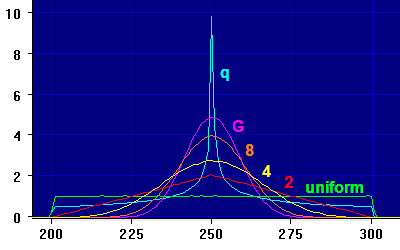
Notice that the uniform disribution has about 1% probability of hitting any of the 101 values from 200 to 300 BPM. The triangular 2-value distribution has a 2% probability of hitting the center, falling linearly to zero at the extremes. The 4-value semi-Gaussian is 2.8% at the center, falling more gently than the triangle at first but then more quickly falling to zero at the extremes. The 8-value semi-Gaussian is 4 percent at the center and falls even faster, and the 12-value Gaussian falls faster still from it central peak of 4.8%. Finally, the square-law distribution has nearly a 10% probability of hitting the center value of 250 BPM, rapidly falling to about 0.5% at the 200 and 300 BPM extremes.
Any of these non-linear distributions can be made single-sided. For example, ?2L(min,max) gives a low-biased distribution that is essentially the upper half of the above '2' triangular histogram, stretched downward so that the peak is at 200 instead of 250. ?2H(min,max) gives a high-biased distribution that is the lower half, stretched upward so the peak is at 300.
Triangular Distributions:
This uses the ?2(min,max) random generator. The '2' indicates that the final distribution is created as the sum of 2 uniform distributions, which has a triangular overall shape. Internally, a 32-bit uniform random number is split into two 16-bit values, which are then summed before being scaled and shifted to fit the specified range.
To see why this creates a triangular distribution, consider adding the outputs of two uniform random number generators, each of which ranges between 0 and 50. The probability of getting any single value from one of these generators is thus 1/51. The probability of a sum of any two specified values is 1/51 * 1/51 = 1/2601.
Only if both are 0 is the sum equal to 0, and only if both are 50 is the sum equal to 100. So each of these has a probability of 1/2601.
On the other hand, there are 51 ways that two values can sum to 50: 0+50, 1+49, 2+48... 50+0. The probability of any one of these pairs is the same 1/2601 as above, so the total probability is 51/2601 or 1/51.
Now look at intermediate sums: To get 1, we can have 0+1 or 1+0, so the probability is 2/2601. Here's a summary:
Sum                            Probability
 0 = 0+0                         1/2601
 1 = 0+1, 1+0                    2/2601
 2 = 0+2, 1+1, 2+0               3/2601
 ...
 49 = 0+49, 1+48, ... 49+0       50/2601
 50 = 0+50, 1+49, ... 50+0       51/2601
 51 = 1+50, 2+49, ... 50+1       50/2601
 52 = 2+50, 3+49, ... 50+2       49/2601
 ...
 98 = 48+50, 49+49, 50+49        3/2601
 99 = 49+50, 50+49               2/2601
 100 = 50+50                     1/2601
Notice that the probability rises linearly from 1/2601 to 51/2601, then falls linearly to 1/2601... a triangular distribution.
Gaussian and Semi-Gaussian Distributions:
If we add more than two uniform sources the triangle mounds up around the peak and droops down away from that, approaching a Gaussian distribution... the traditional "bell-shaped curve".
?G(min,max) uses the sum of 12 uniforms to get a high-quality Gaussian, but for many musical purposes a semi-Gaussian from 4 or 8 uniforms may be more suitable, via ?4(min,max) or ?8(min,max).
The reason is that as more uniforms are added, it becomes increasingly unlikely that the min or max values will be hit in any reasonable time. Consider the 200-300 BPM example used for the histograms at the start of this section, each of which consisted of over 1 million points. Although it is not visible at the magnification used in the figure, the 4-uniform case hit values as low as 201 and as high as 299. The 8-uniform case only hit between 206 and 294, while the 12-uniform Gaussian only hit 213 and 288. In a typical performance (about 1000 random values per minute), even reaching these values would be unlikely, even if you used non-uniform distributions for everything. When used only once to set Tempo at the start of each song, you might not ever encounter the limits.
However, you can always widen the min-max range to insure coverage within a desired central dsitribution, since you can be fairly certain you won't get many values near the wider limits. (And for something like Tempo, a rare extra-slow or extra-fast song won't likely be a problem anyway.)
Note that despite the Gaussian and semi-Gaussian distributions using multiple independent uniform values, each distribution uses only a single value from the main MIDI random generator, as do uniform, triangular, and square-law distributions. This means that you can change distributions without affecting the main random sequence that determines other performance factors, such as note and percussion patterns, instruments, scales, or levels.
For example, the GlossyTracks.DQM setup makes it easy to use different distributions for Tempo. Since by default this setup uses ?x=0 to enable repeatable random values, you can repeat a track or a whole series of tracks from a single initial random seed. By changing the Tempo distribution, you can hear exactly the same tracks, but with different tempos.
This works because the Gaussian and semi-Gaussian modes use a separate pseudo-random generator that is set with the main random seed at the start of a performance. Since this generator produces a different sequence from the same seed, its values are not correlated with the main MIDI random generator.
To produce a 12-uniform Gaussian, for example, a single 32-bit value is obtained from the main generator. This is then split into two independent 16-bit values that are combined, just as they would be for a triangular distribution. Then 5 more of these 2-value pairs are added, except that each of these uses the separate generator. The result is then scaled as needed, yielding a 12-uniform Gaussian distribution.
Square-Law Distributions:
The square-law distribution ?q(min,max) is much more concentrated at the center than even the true Gaussian and drops off much more rapidly, but never falls below about 0.5% probability.
The distribution is obtained by squaring raw uniform values, then re-scaling to keep the specified total range. To understand how this works, consider a range from -100 to +100 instead of the 200-300 used in the above examples. The upper and lower halves of the distribution are handled separately, so that the peak will be in the center.
We'll first discuss the positive 0-100 half. We square each raw uniform X value, then divide by 100 so the final (half) range is still 0-100.
    X         X*X/100
    0            0
    10           1
    20           4
    30           9
    40          16
    50          25
    60          36
    70          49
    80          64
    90          81
    100        100
As you can see, the normalized squared results are always lower than the raw X values, up until the upper limit of the range. That means that low values are much more probable than high values.
The full -100 to +100 distribution uses signed raw uniform values. If the raw X is negative, it is squared (which of course makes it positive) and normalized as above, then negated to give the left side of the distribution, with a big peak near 0 in the center.
Controlling Probabilities:
The specified random limits may exceed what can actually be accepted by a given command, because the command will apply its own limits to the random value. For example, commands like Arpeggio Direction, Note Bend, or Pan Wrap that set one of two states (such as Off or On) will limit all values to 0 or 1. You can use this fact to control the probability of each state.
Alternatively, you can force a normal signed integer variable to 0 or 1 via logical AND with 1, as in U0=U0&&1 or U0=?(-10,10)&&1.
The random values have a uniform distribution, so if you use ?(0,1) the On and Off states will have approximately equal probability.
If you set a higher upper limit, the probability of the On state is increased proportionally. For example, U0=?(0,3)&&1 will cause On states about 75% of the time. (There are 4 possible values, and 3 of them are above zero.)
Conversely, you can use a negative lower limit to increase the proportion of Off states. Negative random values will be truncated to zero by an On/Off instruction or a logical AND, so U0=?(-2,1)&&1 will cause Off states about 75% of the time. (Again, there are 4 possible values, and only one is above zero.)
You can simplify this by just plugging in the percentage of Off and On states, with the Off limit made negative. For example, U0=?(-40,60)&&1 will be Off about 40% of the time and On about 60% of the time.
Those percentages are not exact, since there are 41 values that are 0 or less which (will be limited to 0), and only 60 that are 1 or above (which will be limited to 1). The mathematically correct approach would be to reduce the absolute value of the negative limit by one to account for the zero, hence U0=?(-39,40). But this is unlikely to matter for most uses... after all, it is a random value, so you might need thousands of repetitions before there would be a statistically valid difference.
A minor variant of this limits trick is used with Hold Beats in the GlossyFish.DQM MIDI setup, where Hold Beats only accepts values from 1 to 127, but the random limits are set to -4 and +4. Since 6 of the 9 values in this range are 1 or less, 2/3 of the time Hold Beats is limited to 1. The remaining 1/3 of the time it will be 2, 3, or 4 (probability of 1/9 each). When that happens the effective Tempo of that particular voice is slowed by the Hold Beats factor.
Random Selection from a Buffer:
Suppose you want to assign a random Instrument Number. The normal random process allows you to specify the starting and ending numbers, and it randomly selects a value within that range. That will work fine if you want to select from among instruments that are in a related group in the General MIDI list, such as Piano (0-7), Chromatic Percussion (8-15), Organ (16-23), and so on.
But what if you want to select from a limited group of instruments that you specify? Since the instrument numbers need not be consecutive, there is no range from which the normal random generator can select. For example, suppose you want to select from among 4 instruments:
    0 = Acoustic Grand Piano
    6 = Harpsichord
    10 = Music Box
    14 = Tubular Bells
One solution is to preset the desired instrument numbers as consecutive entries in a MIDI Buffer, then use the random generator to select a value. Let's use Buffer 2 of Voice 1, and set the values to positions 0-3 using the buffer Direct Array Access single-byte command (since all instrument values are in the 0-127 range):
    Bb12.0=0
    Bb12.1=6
    Bb12.2=10
    Bb12.3=14
You can give those commands at the start of a Changes script, followed by an infinite loop that includes the instrument assignment along with whatever other changes you want. For example, to randomly assign the Voice 1 instrument from the list, use:
I1=Bb12.?(0,3)
Or, since all values are 127 or less, you can use the slightly shorter
I1=B12.?(0,3)
The above single-value entries are fine for short lists of specific values. If you want to include whole and partial families of instruments (such as all Piano instruments 0-7 plus the first five Guitars 24-28 and all Bass instruments 32-39), see the Increment Fill command.
Each MIDI buffer holds up to 256 values, and there are 4 buffers for each of the 8 voices... 32 total. Any voice can use any buffer for any purpose. You can thus use redundant buffer entries to change the relative probabilities.
Let's say you want instrument 0 to be selected 70% of the time, and instruments 6, 10, and 14 to each be selected 10% of the time. Instead of the original single-point buffer fill commands, you fill blocks of the buffer using repeat counts equal to the desired percentage numbers:
    Bb12.0=(0,70)
    Bb12.70=(6,10)
    Bb12.80=(10,10)
    Bb12.90=(14,10)
Then you select randomly over the entire 0-99 point range:
I1=B12.?(0,99)
You can also use the above Direct Array Access techniques with 16-bit or 32-bit values. These might be needed for selection of 12-bit Scales or 32-bit random seeds (see Repeatable Random Values, below).
Random Selection from a User Variable List:
Another solution is to store the desired instrument numbers in consecutive 'U'-type user variables, such as UA through UD, and then use I1=?AD to set the instrument number. (Note that you leave out the 'U's in the random command.) You can use any range of variables from UA to UZ here. 'Q'-type variables QA through QZ are not allowed.
Integer user variables can hold any value from -2147483648 to +2147483647, allowing random selection of other values such as 32-bit random seeds or 12-bit as musical Scales.
Random selection from a variable list is simpler than the buffer method if you don't need the variables for something else, and don't need a lot of redundant values to control probabilities.
There is an analogous approach for unsigned fixed-points Ua through Uz, with values from 0 to 65535.9999. These are useful for setting oscillators. For example, you could use $1=?ad to randomly set the real-time Oscillator 1 frequency to one of the fixed-point values in Ua to Ud.
Another way to use the user variable selection technique is for selection from a discontinuous series. For example, suppose you want to set I1 to an instrument randomly selected from either the Piano family (0-7) or the Organ family (16-23), but not the intervening Chromatic Percussion family (8-15). Rather than entering each of the 16 possible values into variables or a buffer, you can randomly set each of two variables with a value from each family, then randomly select between the two variables:
    UA=?(0,7)
    UB=?(16,23)
    I1=?AB
Of course, you may use more than two familes and variables.
Repeatable Random Values:
The normal random number generator is a "true" random generator and is essentially not repeatable. It uses a conventional pseudo-random generator followed by a scrambling process based upon the rapidly-changing least-significant bits of the elapsed time.
If you use true random values to control a DaqMusiq performance, for example, you can't be assured of ever hearing the same performance twice. This might be a good thing, or it might not... you might hear something you really want to be able to repeat, or to exchange with others.
The random number generator can be switched to a "false" mode that only uses the conventional pseudo-random method. In this mode, the sequence of random values will be identical for every performance that uses the same "seed" value. (See below.)
?x=0 switches off the true random generator, and ?x=1 switches it back on. As a mnemonic, note that 1 means "True" and 0 means "False" in conventional binary (Boolean) logic.
?x=x toggles the current state. You can also use ?x=n where n is any expression, including random values. Such random values will be generated using the current True/False state before the command is processed.
Note that these are commands that control the random generator; don't try to use them in place of a normal ?(min,max) random value.
When the generator is in False mode, it uses a "seed" that controls the sequence of pseudo-random values. If you change the seed, you get a different sequence... and hence a different performance.
?s=n sets a new seed value, where n is any expression. Typically you would set this to a chosen constant at the start of the Changes script, followed by ?x=0 to set pseudo-random mode. You would only need to run these commands once. (Since a Changes script normally repeats after it runs its last command, put the rest of the script into an infinite loop. Then only that part will be repeated.)
Seed values may range from -2^31 to +2^31-1 (-2147483648 to +2147483647), but it may be more convenient to use hexadecimal notation by preceding the hex value with 'h'. The hexadecimal range is thus h0 (equivalent to h00000000 or just 0) to hFFFFFFFF.
The default seed value is 3947211523 or hEB45AB03. You can read the current seed as ms, one of the miscellaneous read-only functions included in Mouse Position.
The current seed value is changed every time a pseudo-random value is generated, but not for True random values, which use a separate timer-scrambled seed. You can thus interrupt a pseudo-random sequence by temporarily switching to True to generate as many values as you wish, and when you switch back the pseudo-random sequence will resume where it left off.
Tip: If you want to explore different initial seed values to hear the effects on the performance, you could manually enter an arbitrary new seed by editing the n value in the ?s=n command before every run. But a much better way is to set the seed from a True random value before switching to False mode. At the start of the script, use
?s=?(-3G,+3G)
The +/-3G values set the random limits to the maximum range, because 3G (3 * 10^9) is bigger than 2^31 and is thus limited automatically to the maximum supported positive or negative value.
If you give this command once at the start of the script, and then use an infinite loop for the rest, you'll get a new seed for every run. Or, you can create a loop that will play enough of the performance for you to evaluate the effects of the seed, and change the seed at the start of each loop pass. Don't forget to switch back to True mode before you set the new seed, if you want truly random seeds.
If your goal with the random seed search is to find a particular value you can use later, without the random search, you will need to know that value so you can enter it directly with the ?s=n command. You can use the Output Display option for this, as in oLh=s to show it in hexadecimal on the left window. You could use this command at the start of a performance and the display would persist. If you later start with that seed, the entire performance would repeat exactly. See the GlossyFish listing for an example.
The Output Display command set also includes an oF family of commands that write values to a Log File instead of actually displaying them on-screen, allowing you to save a complete history of seed values. See the "Log File Output" subtopic under Output Display for an example of how to save the seed number along with the track title created by the Song Title Generator as used in the GlossyTracks setup.
You can hit Pause to momentarily halt the performance when you hear something you want to keep. Then you can highlight the Output Display text and use CTRL+C to copy it to the Windows clipboard, and later use CTRL+V to paste it into your script. Or, if you want to survey a lot of seeds quickly, you can paste into the Daqarta Notes Editor or a separate text editor of your choice (such as Windows Notepad), perhaps with a brief comment or rating, then unPause and go on to the next seed.
The alternative random number generator ?R(min,max) is always pseudo-random and works just like the ?(min,max) generator in ?x=0 mode, but is always available without the need for any switching. As noted in the Introduction, ?R(min,max) rounds min and max to integers, then rounds the random result to an integer.
Similarly, ?r(min,max) works just like ?f(min,max) to retain the fractional parts of the limits and of the random value. These use the same generator as the rnd(min,max) macro math function and the Posn?R function. (Not to be confused with rand(min,max).)
You can also get a raw 32-bit value from this generator via mR, without the range control of ?R(min,max) or ?r(min,max). You can set the seed via ?r=n, and you can read the current seed as mr.
Why might you need two independent random generators? The GlossyFish.DQM MIDI setup uses the standard ?() generator in ?x=0 mode so that you can repeat a performance exactly by using the same seed. But this setup also allows hot-keys to change the Scale, including the '?' key to set a random Scale.
If that used the same random generator as the main performance, the remainder of the performance could not be repeated. By using the independent ?r() generator for the random Scale, you can easily toggle back to the original performance at any time.
You can change the parameters of the underlying linear congruential generators that are used for the main ?() and alternative ?r() random numbers. These have the form:
x[n] = (a * x[n-1] + c) mod 2^b
The a, b and c values for the main ?() can be set from a Changes script via ?a=a, ?b=b, and ?c=c, and the alternative ?r() values via ?A=a, ?B=b, and ?C=c.
See the Repeatable Random Values section at the end of the Random Macro Values topic for a discussion and reference, plus a method and table for setting these parameters to produce short-sequence pseudo-random generators.
Note that the a, b, and c values you set for the main ?() generator are used in both true random ?x=1 mode and pseudo-random ?x=0 mode, though they are otherwise separate generators which use use separate seeds. (The true random seed is not settable.) However, in true random mode the generated value is further randomized via a subsequent binary rotation of 0 to 31 bits based on the number of milliseconds since Daqarta started. Thus, if you set bits b to less than 32, the true random generator may still return 32-bit results depending on the particular generated value and the amount of rotation, but the overall behavior will not be the same as when b is 32.
Random Usage Counter:
Every time you invoke the MIDI random number generator, an internal counter is incremented that may be read via UA=?c to see how many times the generator has been "hit". This may be useful when dealing with multiple voices running concurrently, using random values at different rates, such that it is not feasible to estimate how often a random cycle will repeat. This is likely only relevant when you are using deliberately short repeat cycles, obtained by setting new random generator parameters via the a, b, and c values mentioned above.
Note that although UA=?c reads the counter, ?c=UC sets the c constant.
The counter is reset to zero by the ?s=n command to set a new seed, or ?x=n command to switch between true random and pseudo-random.
See also Changes Script Overview, Changes Script Editor, MIDI Voice Setup Dialogs, Pitch-to-MIDI dialog, Pitch Track Toolbox - Overview

- Back to MIDI Changes Script Expressions
- Ahead to MIDI Changes Script Oscillators
- Daqarta Help Contents
- Daqarta Help Index
- Daqarta Downloads
- Daqarta Home Page
- Purchase Daqarta
Questions? Comments? Contact us!
We respond to ALL inquiries, typically within 24 hrs.INTERSTELLAR RESEARCH:
Over 35 Years of Innovative Instrumentation
© Copyright 2007 - 2023 by Interstellar Research
All rights reserved